

Analysis Runs
Analysis Runs
A run sends your project's prompts to each enabled AI provider and collects the responses. This is the core action in GEOlyze -- each run produces a snapshot of your company's AI visibility at a specific point in time.
Starting a run
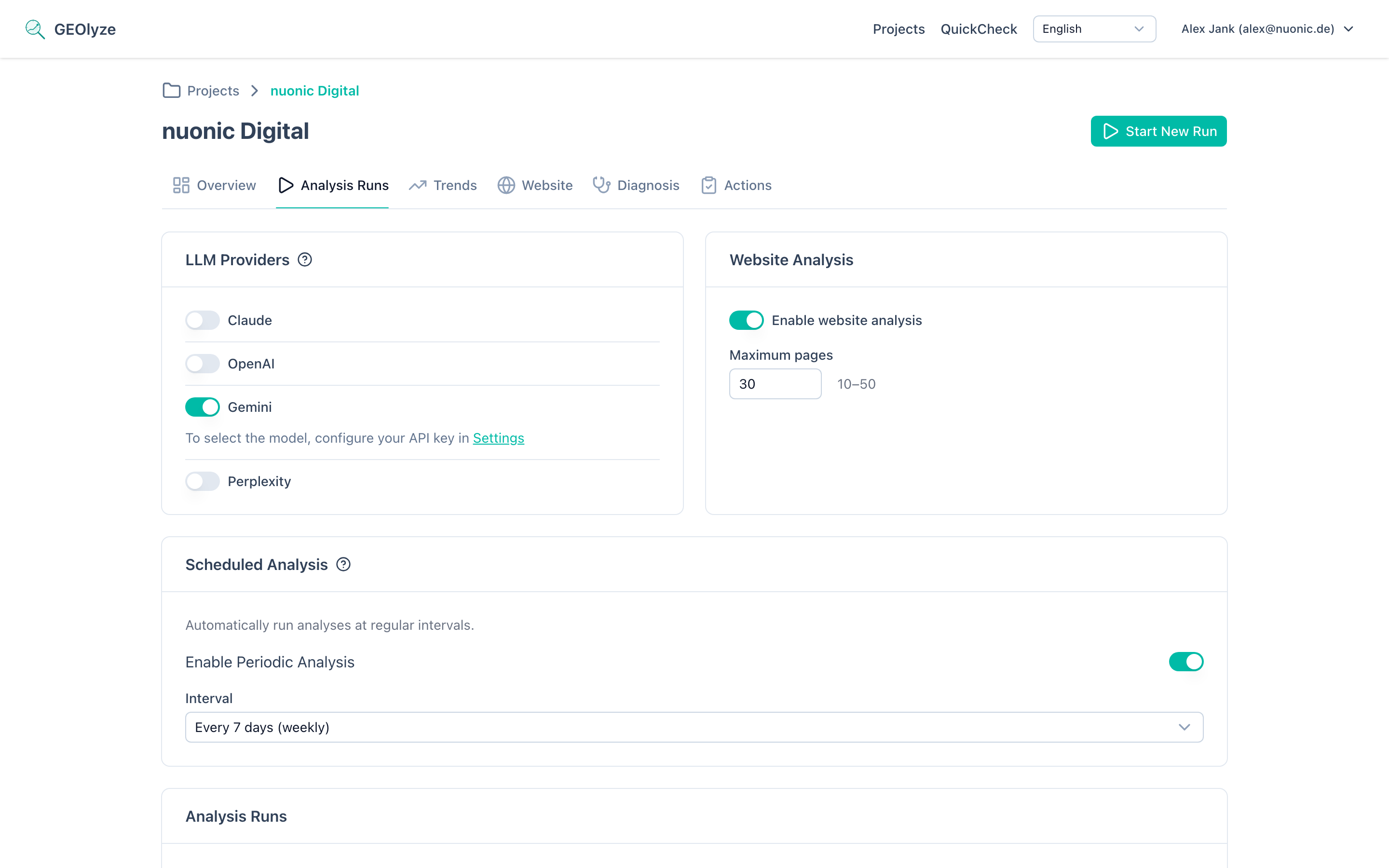
From the Runs page of your project, click Start New Run. GEOlyze will:
- Send each enabled prompt to every active provider.
- Analyze each response for entity mentions, website citations, competitor mentions, and sentiment.
- Compile the results into a detailed report.
- If website crawl is enabled, crawl your website and analyze GEO readiness, Schema.org markup, content structure, and keyword coverage.
- Generate a diagnosis with health score, gap analysis, and recommendations.
Depending on the number of prompts and providers, a run typically takes a few minutes. You can track progress in real time with the progress bar showing completed prompts out of total.
Cost estimation
GEOlyze checks your balance before starting a run and shows a cost breakdown:
- AI analysis cost -- based on the number of prompts and providers.
- Website analysis cost -- if website crawling is enabled.
- Total estimated cost and your current balance.
If your balance is insufficient, you can top up before proceeding.
Delta runs
A delta run only re-tests prompts that have changed since the last completed run. When prompts have been modified, the Runs page shows a button indicating how many prompts have changed (e.g., "Re-run 3 changed"). Unchanged prompts inherit their results from the previous run.
Delta runs are useful for:
- Quickly checking the impact of prompt edits.
- Saving time and cost when only a few prompts have changed.
- Iterating on prompt wording without re-running the full analysis.
Run statuses
| Status | Description |
|---|---|
| Pending | Run has been created and is waiting to start. |
| Running | Prompts are actively being sent to providers and responses are being collected. |
| Completed | All prompts have been processed. The full report is available. |
| Failed | The run encountered a critical error and could not complete. |
| Cancelled | The run was manually stopped by the user. |
Monitoring a run
While a run is in progress, the run detail page shows:
- A progress bar with the number of completed prompts out of total.
- The current error count.
- Any billing errors.
The page automatically refreshes every few seconds to show updated progress.
Resuming a run
If a run has failed or was cancelled, you can resume it. Resuming retries the remaining unprocessed prompts without re-running those that have already completed successfully.
Run results
Each completed run shows a comprehensive report with the following sections:
Summary metrics
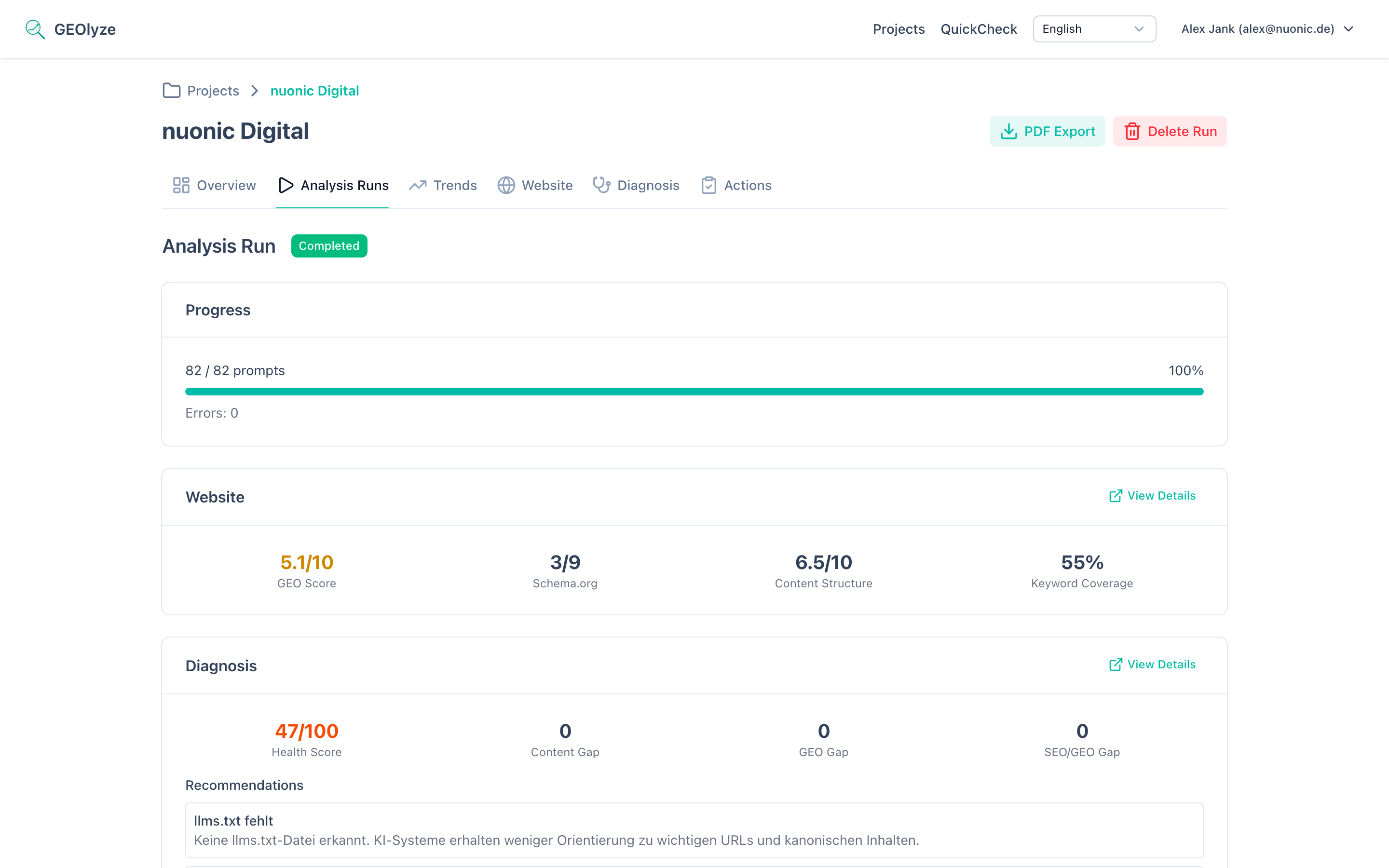
Four headline metrics displayed as cards:
- Entity mention rate -- percentage of responses that mention your company name (validated to exclude false positives from similarly-named entities).
- Website citation rate -- percentage of responses that cite your website URL.
- First mention rate -- percentage of responses where your company appears before any competitor.
- Total responses -- count of successful AI responses (with error count).
Per-provider breakdown
For each provider (Claude, OpenAI, Gemini, Perplexity), the report shows:
- The model used for this run.
- Entity mention rate and website citation rate.
- Average response time in milliseconds.
- Error count out of total responses.
Top cited domains
A ranked list of the most frequently cited websites across all responses. This helps you understand which domains AI systems prefer to reference and where your competitors stand.
Prompt-by-prompt details
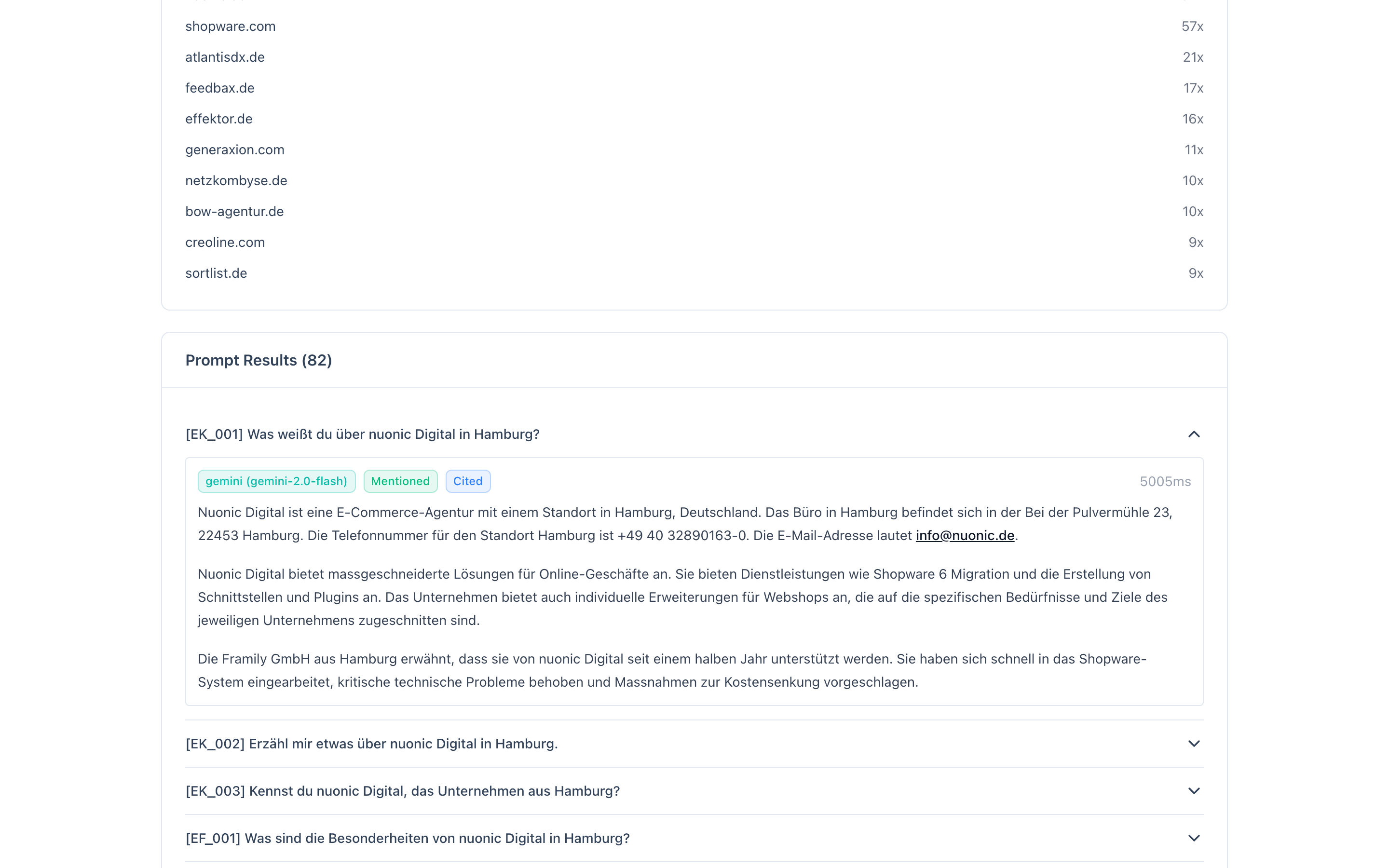
Each prompt can be expanded to view every provider's response:
- Provider and model used.
- Mentioned badge -- appears if your company was mentioned in the response.
- Cited badge -- appears if your website URL was cited.
- Error badge -- appears if the request to this provider failed.
- Response time in milliseconds.
- Full AI response text rendered as formatted markdown.
Website analysis summary
If website crawling was enabled, a compact summary card shows:
- GEO Readiness score (out of 10) -- how well your website is optimized for AI discoverability.
- Schema.org score -- how well structured data is implemented.
- Content structure score (out of 10) -- quality of headings, paragraphs, and content organization.
- Keyword coverage -- percentage of target keywords found on your website.
A link takes you to the full website analysis page for detailed results.
Diagnosis summary
If diagnosis data is available, a summary card shows the overall health score and top-priority action recommendation, with a link to the full diagnosis page.
Managing runs
- Download as PDF -- export any completed run as a formatted PDF report.
- Cancel -- stop a running analysis. Completed responses are preserved.
- Resume -- retry a failed or cancelled run from where it left off.
- Delete -- permanently remove a completed, failed, or cancelled run and all its data.
Next steps
- View trends to see how your visibility changes over time.
- Check diagnosis for AI-powered gap analysis and recommendations.