

Projects
Projects
A project is the central workspace for tracking a company's AI visibility. Each project stores company details, provider configuration, prompts, keywords, and all analysis data. A project ties together everything needed to monitor how AI systems perceive and recommend your business.
Creating a project
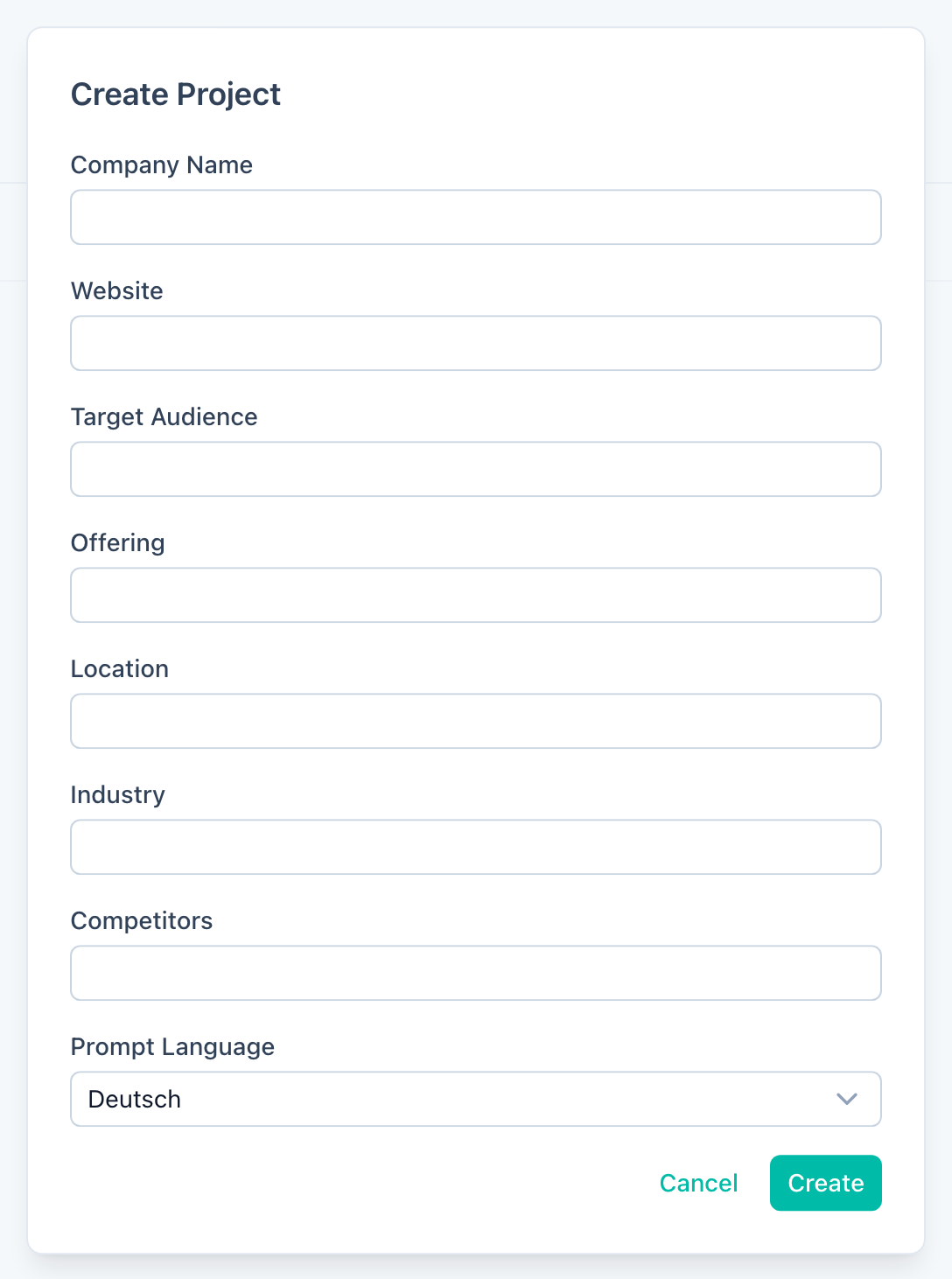
From the dashboard, click New Project and fill in the following fields:
- Company name — the name as it should appear in AI responses. GEOlyze uses this to detect whether AI models mention your company.
- Website — the company's primary URL. Used to check whether AI models cite your website and to run website crawl analysis.
- Target audience — who the company serves (e.g., "small businesses in Berlin" or "homeowners looking for solar installations"). Helps AI generate relevant prompts.
- Service offering — what the company provides (e.g., "plumbing, heating, and sanitary installation services"). Shapes the prompts sent to AI models.
- Location — where the company operates (e.g., "Berlin, Germany"). Essential for local recommendation prompts.
- Industry — the business sector (e.g., "SaaS", "healthcare", "construction"). Used for industry-specific prompt generation.
- Competitors — other companies to compare against. Enter each competitor name individually. GEOlyze tracks how often competitors are mentioned alongside your company.
- Prompt language — German or English. Determines the language of the auto-generated prompts that are sent to AI providers.
- Keyword description (optional) — describe what your company wants to be known and found for. Used by AI to generate keywords for website analysis.
After creating a project, GEOlyze automatically generates a set of prompts tailored to your company profile and configures the default LLM providers.
Project dashboard
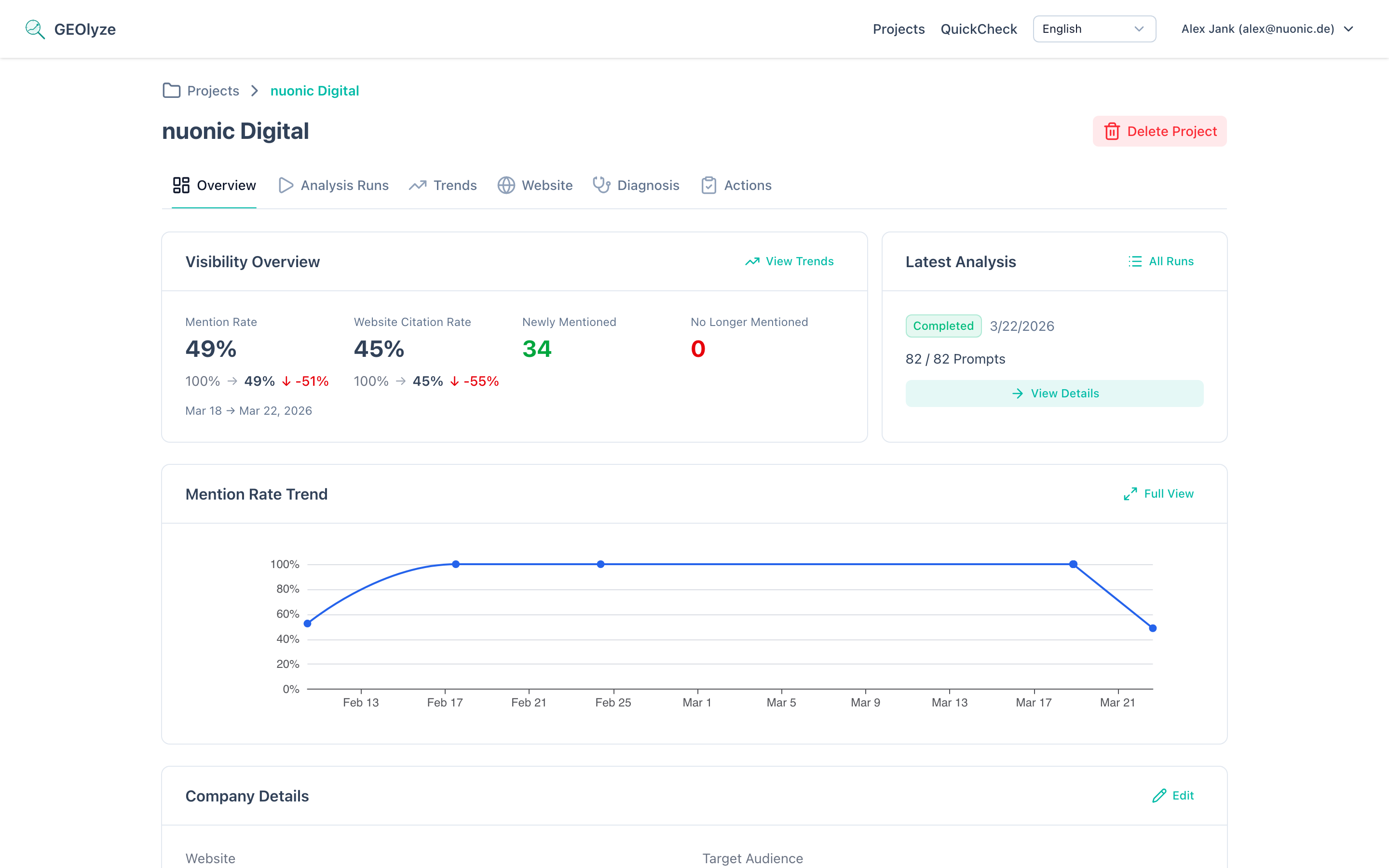
When you open a project, the dashboard shows an at-a-glance overview:
- Visibility KPIs — entity mention rate, website citation rate, and prompt movements (gained/lost) compared to the previous run.
- Latest run status — current status, progress, and a link to the full run report.
- Trend chart — a mini chart showing how your entity mention rate has developed over time (requires at least two completed runs).
Editing a project
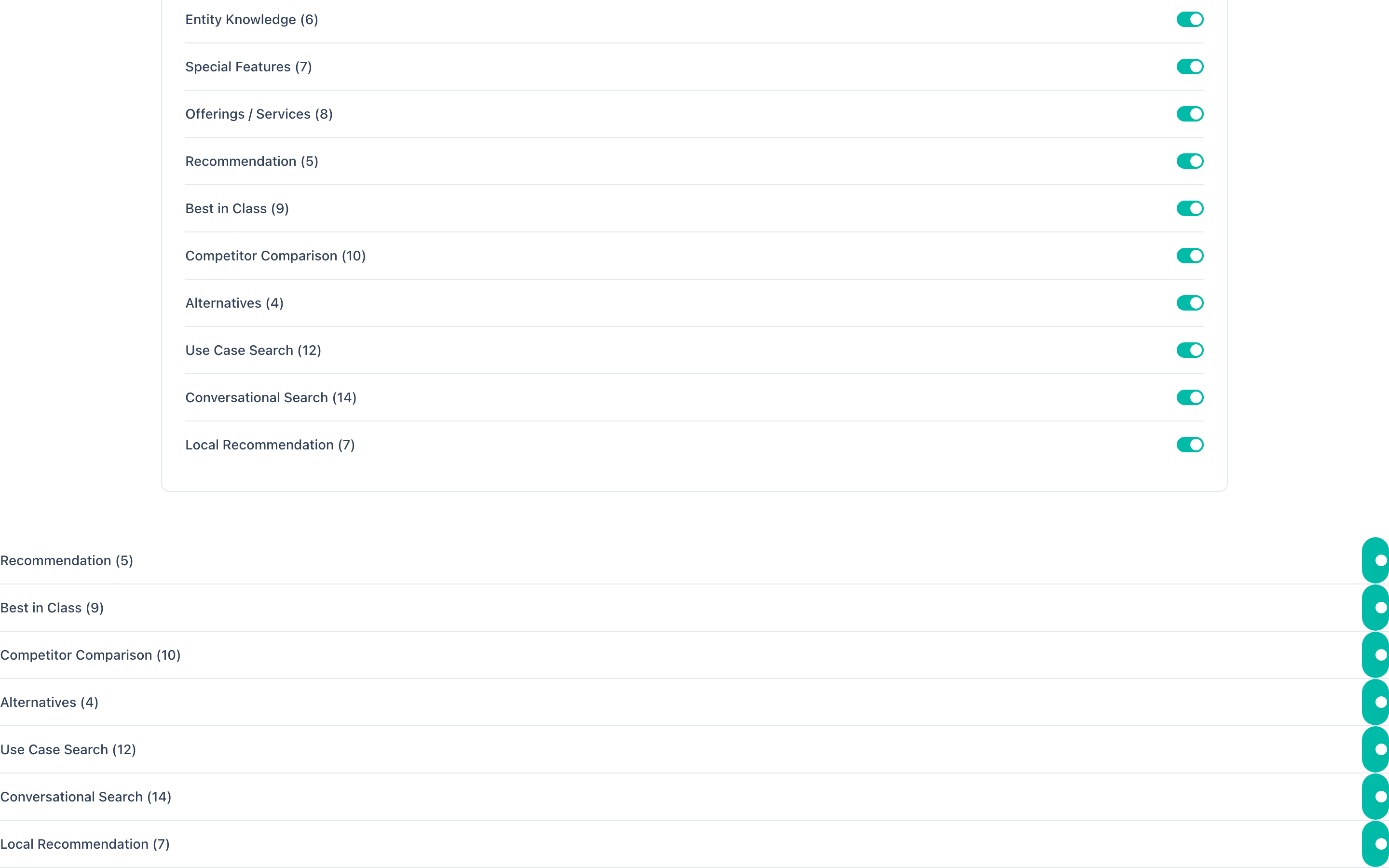
Click the edit button on the company details card to update any project field. When you save changes, GEOlyze automatically refines all prompts using AI to match the new company context. A spinning indicator shows while refinement is in progress.
Fields you can update:
- Company name, website, target audience, service offering, location, industry
- Competitors (add or remove)
- Prompt language
- Keyword description
Deleting a project
Use the Delete Project button to permanently remove a project and all its associated data, including runs, prompts, providers, keywords, and analysis results. This action cannot be undone.
Project settings
Each project has its own configuration for:
- LLM Providers — which AI engines to use and which model each one runs.
- Prompts — the questions sent to each provider during a run.
- Scheduled runs — automatic periodic analysis at configurable intervals.
- Website crawl — enable or disable website crawling and set the maximum number of pages to crawl (10--200, default 50). When enabled, each run crawls your website and evaluates GEO readiness, Schema.org markup, content structure, and keyword coverage.
Project navigation

Each project provides the following pages:
- Overview — dashboard with KPIs, prompts, and company details.
- Runs — start new runs, view run history, configure providers and scheduling.
- Trends — visibility trend charts, prompt movements, provider comparison, and competitor shifts over time.
- Diagnosis — AI-powered gap analysis with health score, keyword diagnoses, technical findings, and recommendations.
- Website — website crawl results including GEO readiness score, Schema.org analysis, content structure scoring, and keyword coverage.
- Actions — log optimization actions you have taken (content, technical, offpage, schema, listing) and track their impact on visibility trends.