

Prompts
Prompts
Prompts are the questions GEOlyze sends to each AI provider during a run. Each project comes with a set of auto-generated prompts organized by category. You can customize them to focus on what matters most for your business.
Prompt categories
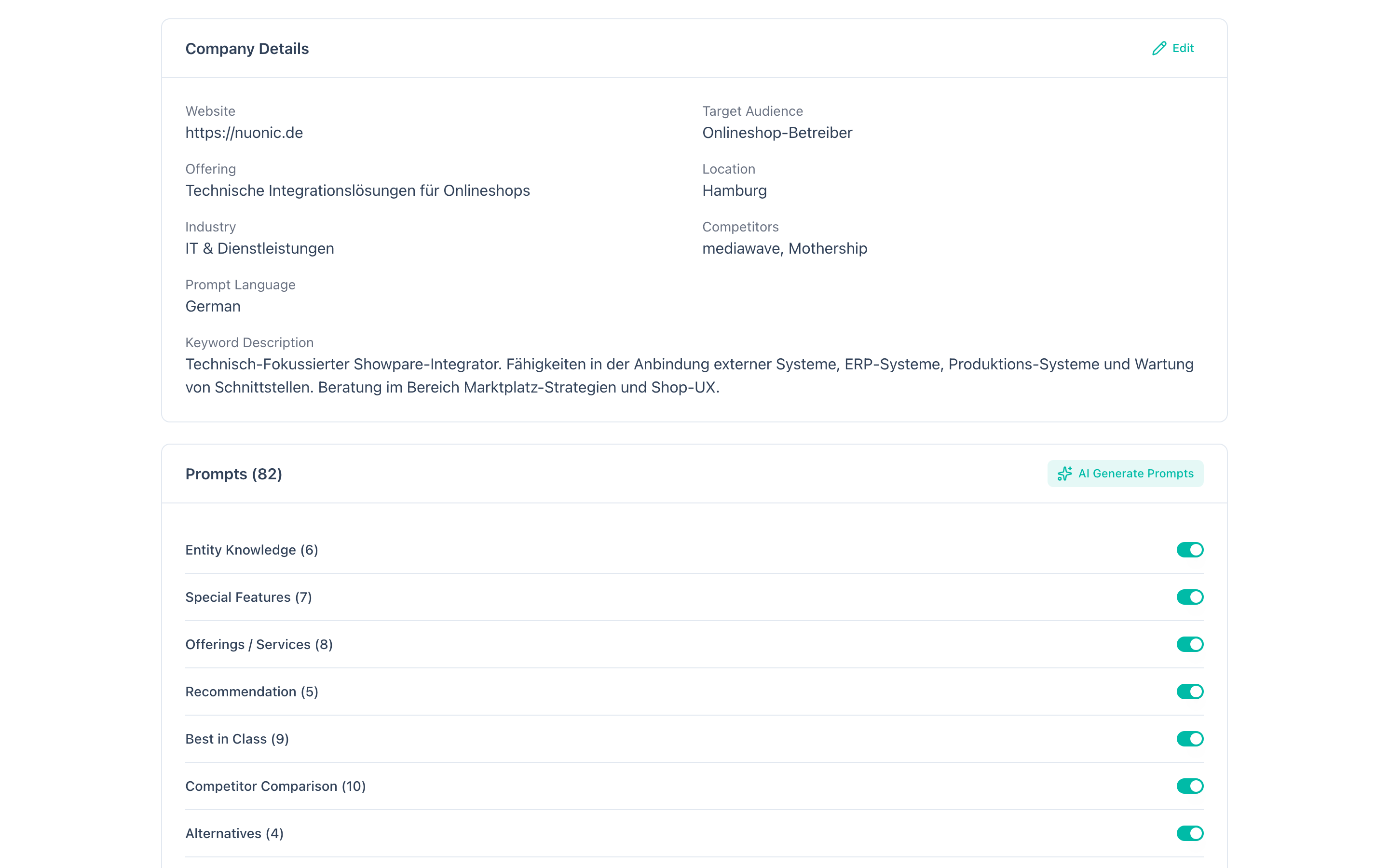
Prompts are grouped into ten categories, each testing a different aspect of your AI visibility:
| Category | Description |
|---|---|
| Entity Knowledge | Does the AI know about your company? Tests basic awareness and factual knowledge. |
| Special Features | Does the AI understand what makes your company unique or special? |
| Offerings / Services | Does the AI know what products or services you offer? |
| Recommendation | Does the AI recommend your company when asked directly? |
| Best in Class | Does the AI rank your company among the best in your industry? |
| Competitor Comparison | How does the AI compare you against specific competitors? |
| Alternatives | When users ask for alternatives to a competitor, does your company appear? |
| Use Case Search | When users describe a problem or use case, does the AI suggest your company? |
| Conversational Search | In natural, conversational queries, does your company come up? |
| Local Recommendation | Does the AI recommend you for location-specific queries? |
Each category accordion shows the number of prompts it contains and how many are currently disabled.
Prompt properties
Every prompt has the following properties:
- Prompt ref — a unique identifier (e.g., EK_001, CC_002) shown as a badge. Useful for referencing prompts in actions and trend analysis.
- Label — a short descriptive name for the prompt.
- Prompt text — the actual question sent to AI providers.
- Enabled/Disabled — whether the prompt is included in runs.
- Customized badge — indicates that you have edited the prompt text or label. Only appears on prompts that differ from the auto-generated default.
- Expects entity mention — some prompt categories (like Entity Knowledge, Competitor Comparison) expect your company name to appear in the AI response; others (like Use Case Search, Local Recommendation) are generic queries where a mention is a positive signal but not expected.
Customizing prompts
Edit a prompt
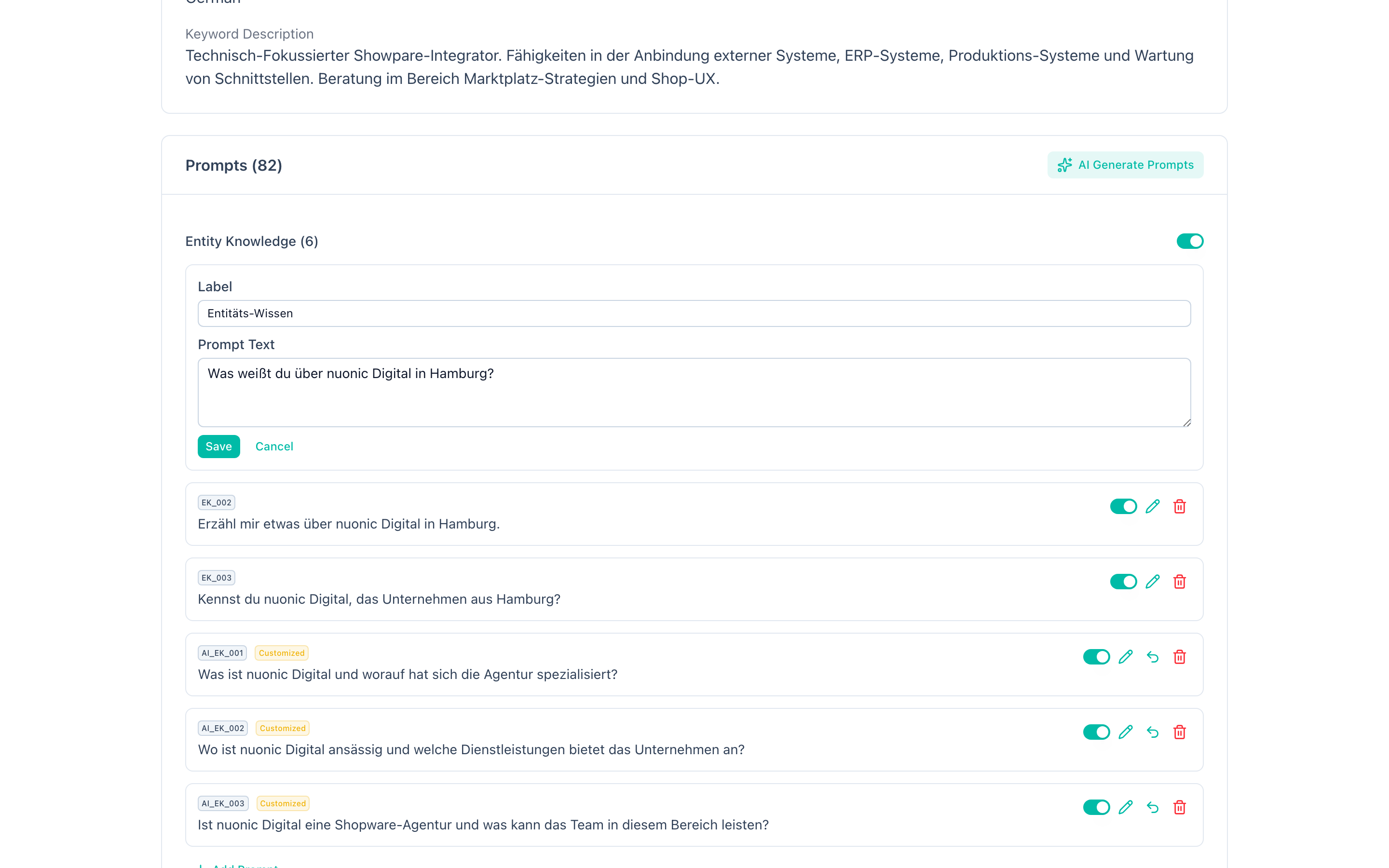
Click the pencil icon on any prompt to edit its label and prompt text inline. Save your changes or cancel to discard. Edited prompts receive a "Customized" badge.
Reset to default
For customized prompts, a reset button appears. Clicking it reverts the prompt text and label back to the original AI-generated version.
Enable or disable prompts
Toggle individual prompts on or off using the switch next to each prompt. Disabled prompts are skipped during runs but are not deleted.
You can also toggle an entire category on or off at once using the category-level switch in the accordion header.
Add new prompts
Within any category, click Add Prompt to create a custom prompt. Provide a label and prompt text. Custom prompts work exactly like auto-generated ones and are included in future runs.
Delete prompts
Click the trash icon to permanently remove a prompt. Both custom and auto-generated prompts can be deleted.
AI-generated prompts
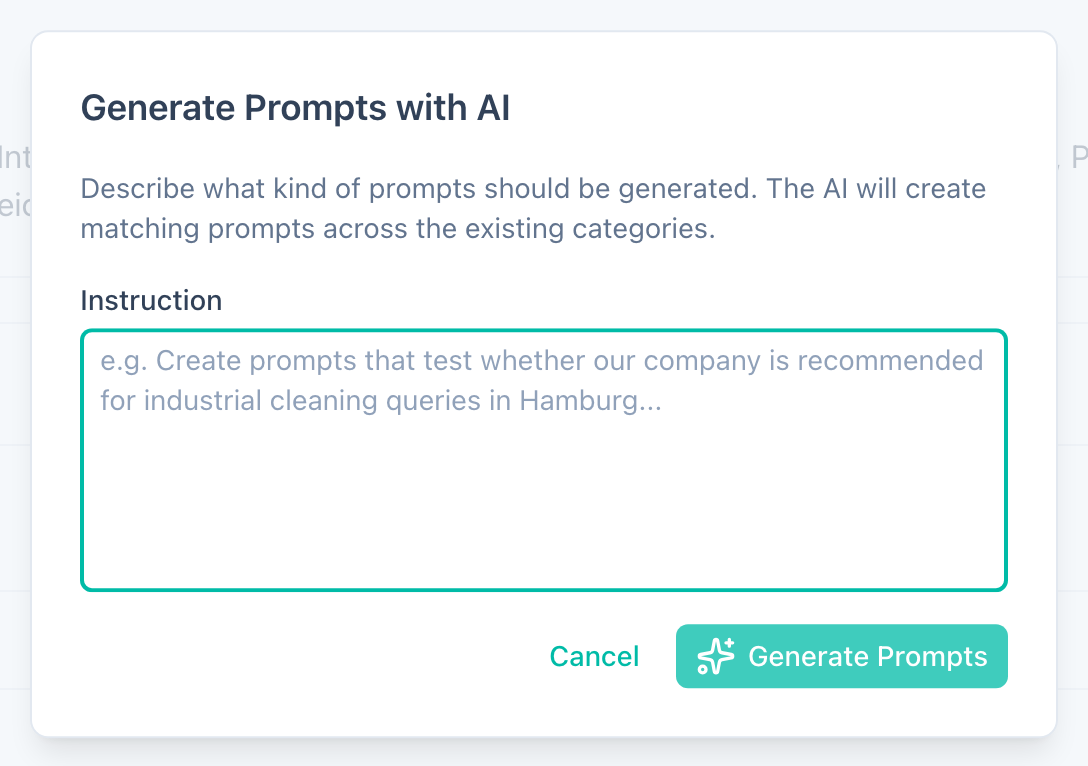
Click AI Generate to open the generation dialog. Provide a custom instruction describing what you want to focus on (e.g., "Focus on local plumbing keywords in Berlin" or "Add prompts about sustainability certifications"). The instruction must be at least 10 characters long.
GEOlyze uses AI to generate a new set of optimized prompts matching your instruction and your project's company context. The new prompts are added to the existing set.
Automatic refinement
When you update your project details (company name, competitors, services, location, etc.), all prompts are automatically refined by AI to match the new context. A spinning indicator appears in the prompts section header while refinement is in progress. You receive a notification when refinement completes.
This ensures your prompts always stay aligned with your current company profile without manual editing.