

What is GEOlyze?
What is GEOlyze?
GEOlyze is a platform for monitoring how AI systems represent your business. As more people use AI assistants to find products and services, it's critical to know whether these systems mention your company, cite your website, and recommend you over competitors.
Core concepts
Projects
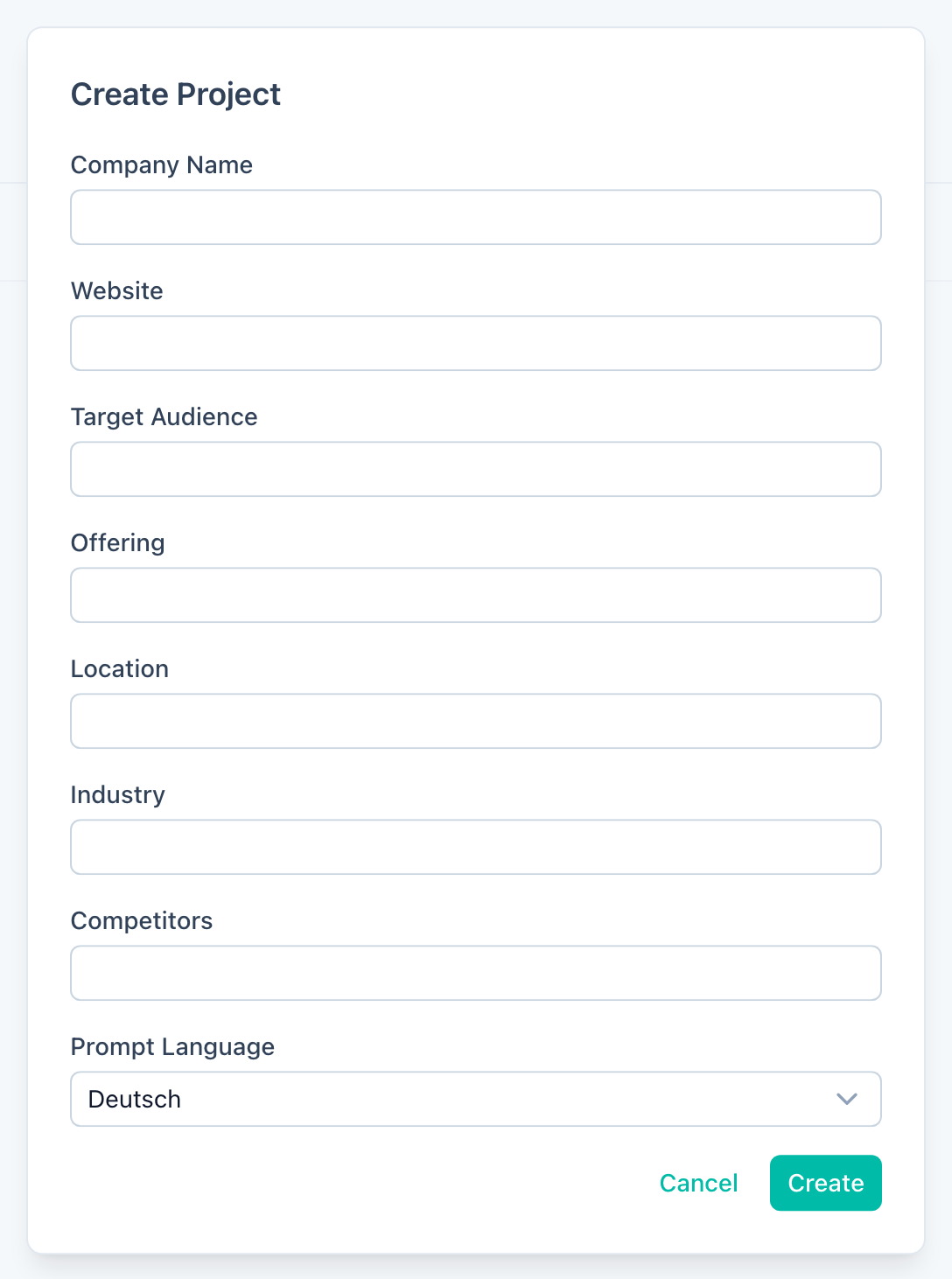
A project represents a single company or brand you want to track. Each project stores your company details and serves as the workspace for all analyses. When creating a project, you provide:
- Company name — the brand or business name to track.
- Website — your company's URL.
- Target audience — who your products or services are aimed at.
- Offering — what products or services you provide.
- Location — your geographic area.
- Industry — the sector your business operates in.
- Competitors — other companies to compare against (added as tags).
- Prompt language — the language for AI prompts (German or English).
You can edit all project details at any time from the project overview page. When you update project details, GEOlyze automatically refines your prompts to match the new information.
Runs
A run is a single analysis execution. When you start a run, GEOlyze sends your configured prompts to each enabled AI provider and collects the responses. Each run produces:
- Entity mention rate — what percentage of AI responses mention your company.
- Website citation rate — what percentage cite your website URL.
- First mention rate — how often your company appears first among competitors.
You can also run delta runs — incremental re-runs that only re-test prompts that have changed since the last completed run. The interface shows you how many prompts have changed and lets you start a delta run with a single click.
Runs can be cancelled while in progress and resumed if they were interrupted or failed partway through.
Each completed run produces a detailed report that you can export as a PDF.
Providers
GEOlyze supports four AI providers:
| Provider | Default model |
|---|---|
| Claude (Anthropic) | claude-sonnet-5 |
| OpenAI | gpt-5.6-luna |
| Gemini (Google) | gemini-3.5-flash |
| Perplexity | sonar |
You can enable or disable providers per project and choose a custom model for each. GEOlyze uses shared platform keys by default. You can optionally add your own API keys in the Settings page to reduce costs.
Prompts
Each project has a set of prompts organized by category:
- Entity knowledge — Does the AI know about your company?
- Entity features — Does it know your key features and differentiators?
- Entity offerings — Can it describe your products and services?
- Entity recommendation — Does it recommend your company?
- Best in class — Is your company recognized as a leader?
- Competitor comparison — How does it compare you with competitors?
- Alternatives — Does it list you as an alternative to competitors?
- Use case search — Does it surface you for relevant use cases?
- Conversational search — Does it mention you in conversational queries?
- Local recommendation — Does it recommend you for local searches?
You can customize, add, disable, or delete individual prompts. You can also toggle entire categories on or off. Customized prompts are marked with a badge and can be reset to their original text at any time.
AI-generated prompts
In addition to the default prompts, you can generate new prompts using AI. Provide a natural-language instruction describing what you want the prompts to focus on, and GEOlyze generates tailored prompts for your project.
Website analysis
When website crawling is enabled for a project, each run also crawls your website and produces a detailed technical analysis:
- GEO Readiness Score (0–10) — how well your site is optimized for AI discoverability.
- Schema.org Score — how complete your structured data markup is.
- Content Structure Score (0–10) — how well your content is organized for AI consumption.
- Keyword Coverage — what percentage of relevant keywords are found on your site.
- Technical checks — HTTPS, robots.txt, llms.txt, sitemap.xml, IndexNow support, and AI crawler access.
You can configure the maximum number of pages to crawl (10–200) and enable or disable crawling entirely. The detailed results are available on the Website tab of your project.
Keyword management
On the Website tab, you can manage target keywords that GEOlyze checks against your website content. This helps identify gaps between what AI systems might search for and what your site actually covers.
Project dashboard
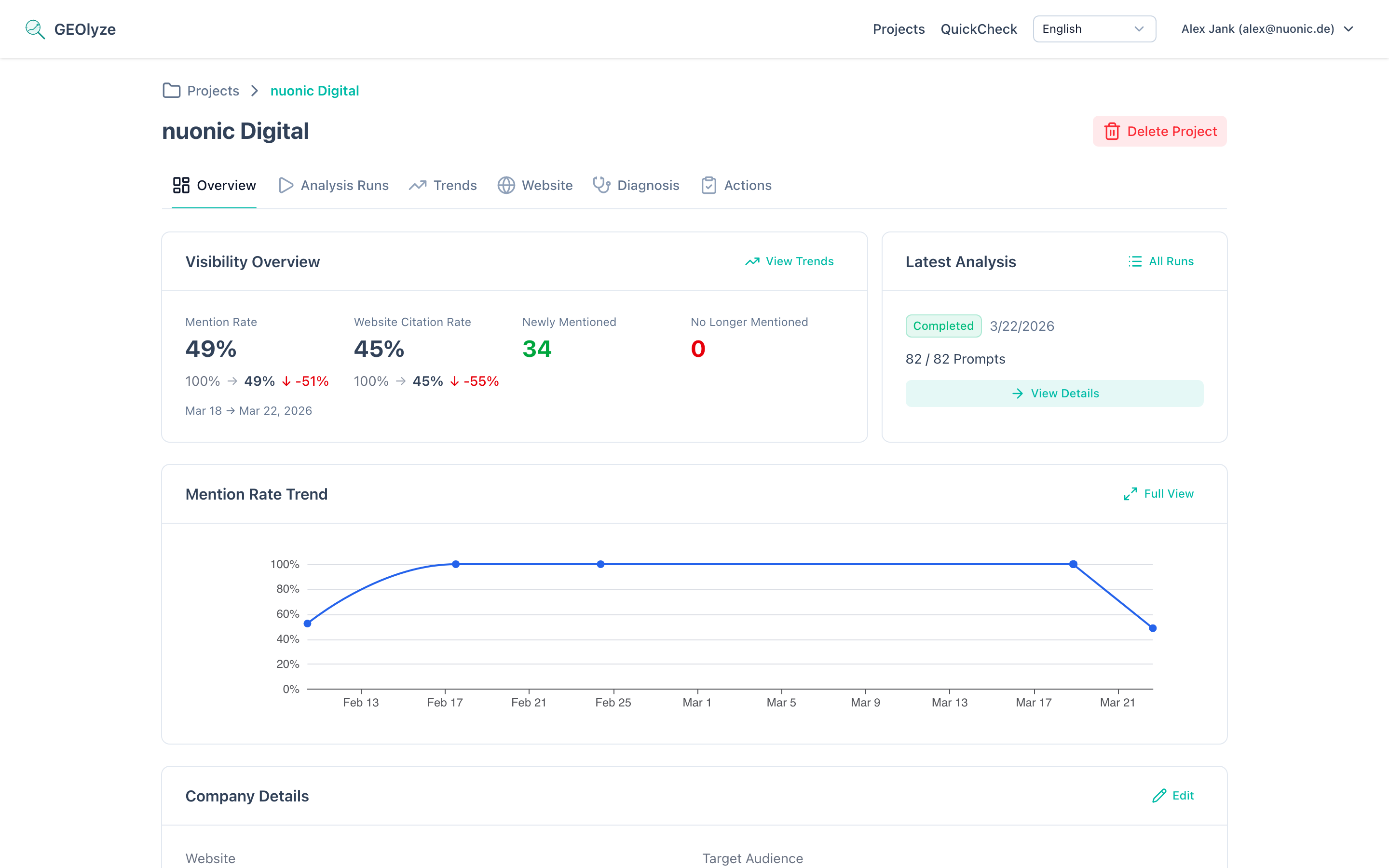
The project overview page shows:
- KPI cards — current entity mention rate, website citation rate, and prompt movement stats (gained/lost) compared to the previous run.
- Latest run status — a quick view of your most recent run's progress and results.
- Mini trend chart — a compact entity mention rate chart over time.
- Company details — editable information about your business.
- Prompts section — all prompts with inline editing, category toggles, and AI generation.
Run results
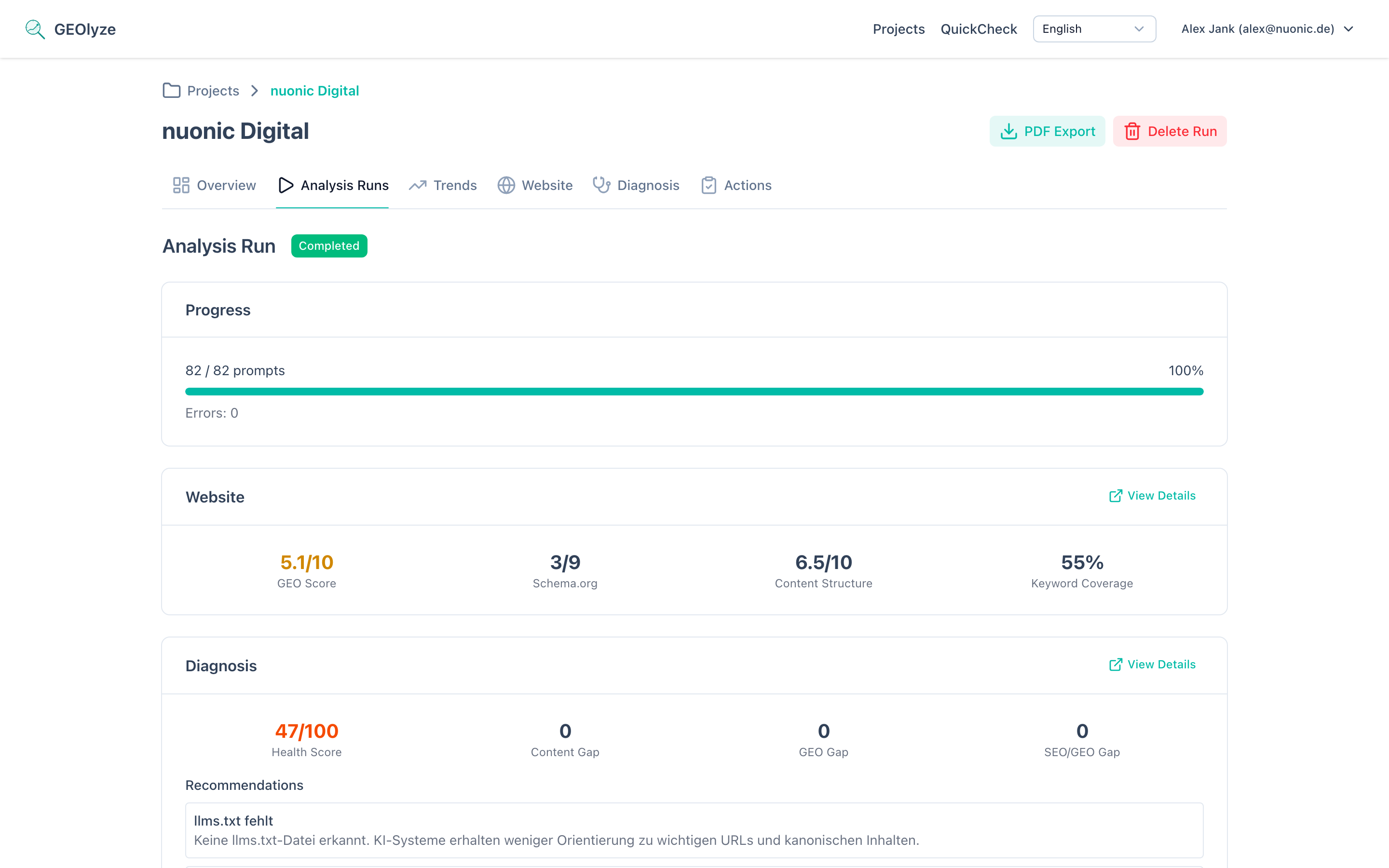
After a run completes, the run detail page shows:
- Summary cards — entity mention rate, website citation rate, first mention rate, total responses.
- Per-provider breakdown — results for each AI engine including model used, response rates, average response time, and error count.
- Top cited domains — which websites AI systems cite most often in responses.
- Website analysis summary — GEO score, schema score, content score, keyword coverage (if crawling is enabled).
- Diagnosis summary — health score, top priority action, and perspective flow analysis.
- Prompt-level results — expandable view of every prompt with the full AI response from each provider, showing whether your company was mentioned and your website was cited.
Diagnosis
The Diagnosis tab provides an AI-powered analysis of your visibility results:
- Health Score — an overall health gauge for your AI visibility.
- Top priority action — the single most impactful step you can take.
- Perspective Flow — a visual breakdown of how AI systems perceive your company from different angles.
- Technical findings — specific issues found in the analysis.
- Recommendations — prioritized list of improvement actions.
- Keyword matrix — detailed per-keyword visibility analysis with drill-down into individual diagnostics.
Trends
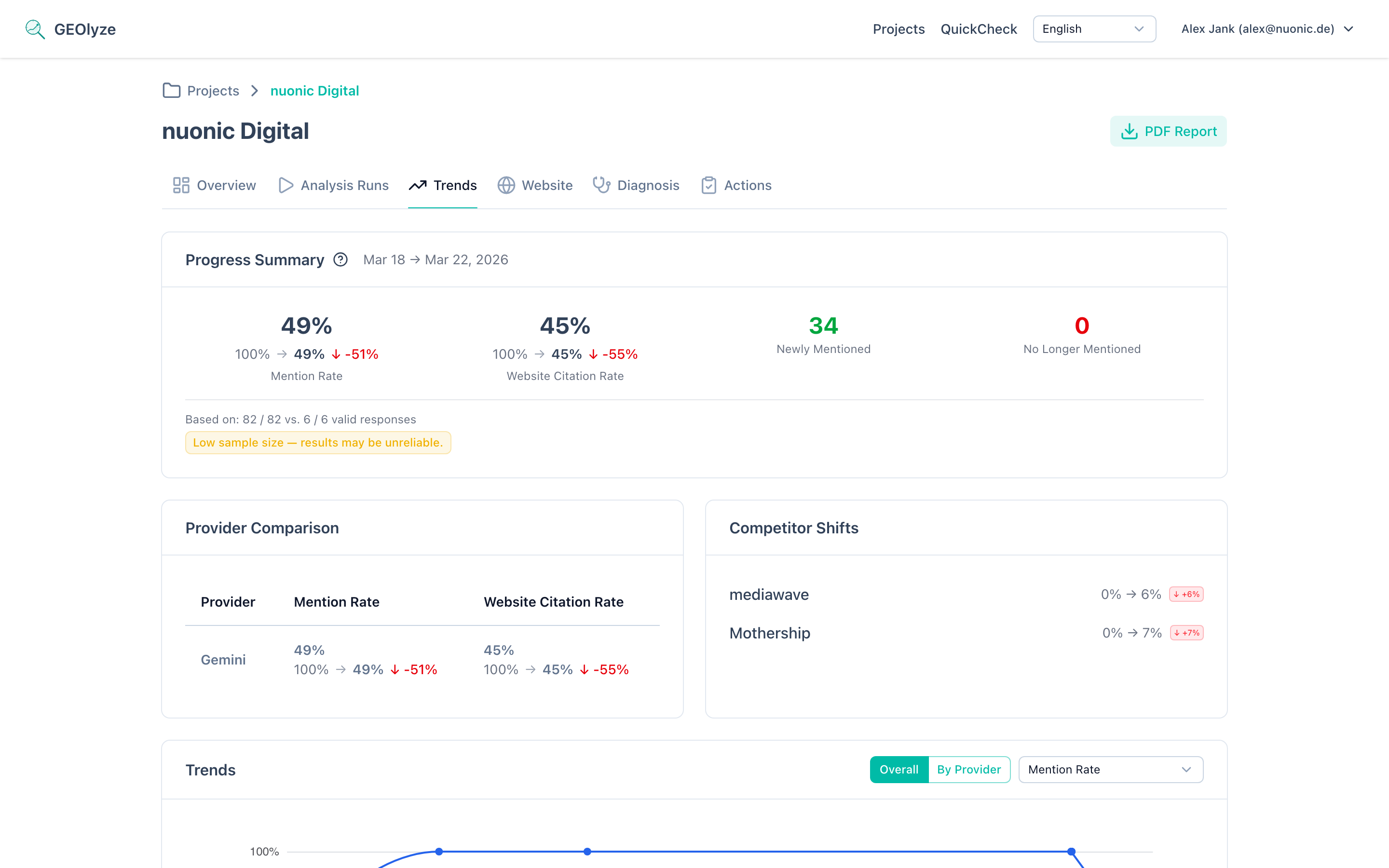
The Trends tab tracks your visibility over time across multiple runs:
- Progress summary — entity mention rate and website citation rate with delta indicators, plus prompt movement counts (gained, lost, stable visible, stable invisible).
- Provider comparison table — side-by-side metrics for each AI provider.
- Competitor shifts — how competitor mention rates have changed between runs.
- Trend charts — interactive time-series charts for entity mention rate, website citation rate, and first mention rate. You can view overall trends or break them down by provider.
- Prompt movements — which specific prompts gained or lost visibility.
- PDF export — download a trends report as a PDF document.
Actions
The Actions tab lets you log optimization steps you've taken and correlate them with visibility changes over time. Each action includes:
- Title and description — what you did.
- Date — when the action was taken.
- Category — content, technical, off-page, schema, or listing.
- Affected prompts — which prompt references the action targets.
Logged actions appear as markers on your trend charts, making it easy to see the impact of your optimization efforts.
Scheduled runs
You can automate analysis by enabling scheduled runs. Configure the interval to run automatically:
- Every day
- Every 2 days
- Every 7 days
- Every 14 days
- Every 30 days
Settings
The Settings page lets you manage API keys for each AI provider (Anthropic, OpenAI, Google, Perplexity). GEOlyze uses shared platform keys by default. You can optionally add your own keys to reduce costs.
API keys
GEOlyze provides a REST API for programmatic access. On the API Keys page you can:
- Create named API keys with optional expiration dates.
- View last-used timestamps.
- Revoke keys when they are no longer needed.
- Access the interactive API documentation (OpenAPI/Swagger).
Typical workflow
- Create a project with your company details and competitor list.
- Configure providers — choose which AI engines to test against and select models.
- Review and customize prompts — adjust the questions to match your focus areas, or generate new prompts with AI.
- Start a run — GEOlyze queries all enabled providers, crawls your website, and collects results.
- Analyze results — check the run detail page, diagnosis, website analysis, and trends dashboard.
- Log actions — record optimization steps on the Actions tab.
- Optimize — make improvements to your website and content, then re-run to measure progress.
- Automate — set up scheduled runs for continuous monitoring.
Next steps
- Try QuickCheck for a quick visibility assessment without a full project.
- Create your first project to start tracking.