QuickCheck
QuickCheck
QuickCheck is a lightweight analysis tool that evaluates a company's visibility across AI systems without requiring a full project setup. It's ideal for quick assessments, demos, or lead generation.
How it works
QuickCheck sends a focused set of prompts to multiple AI providers, crawls the company's website, and generates a shareable report with visibility scores, competitor analysis, and actionable recommendations.
Creating a QuickCheck
You can create a QuickCheck in two modes:
Manual mode
Enter the company details yourself:
- Company name (required)
- Website URL (optional)
- Location / Region (required)
- Contact name (required) — first name of the contact person.
- Service description (required) — a brief summary of what the company does (max. 200 characters).
- Top 3 services (required) — the three main services or products.
- Target customers (required) — who the company serves.
AI mode
Let AI extract the company details from a website:
- Website URL (required) — the website to analyze.
- Instruction (required) — describe the business focus or what you want the analysis to concentrate on (e.g., "Focus on local visibility for web design services in the Munich area").
- Contact name (optional)
GEOlyze crawls the website and automatically detects the company name, location, services, and target audience. It also generates tailored prompts based on the extracted information.
Analysis process
After you start a QuickCheck, it progresses through several steps:
- AI prompt generation (AI mode only) — the system generates relevant prompts based on the website content and your instruction.
- Analysis preparation — natural language processing setup.
- Querying AI systems — prompts are sent to multiple AI providers. During this step, a progress bar shows how many responses have been collected.
- Website crawling (runs in parallel) — if a website URL was provided, GEOlyze crawls the site and analyzes its structure, schema markup, and technical setup.
- Analyzing responses — responses are evaluated for mentions and citations.
- Generating recommendations — personalized improvement recommendations are created.
QuickCheck results
Each completed QuickCheck produces a report with the following sections:
Traffic-light status banner
A quick visual indicator of the company's AI visibility:
- Green — the company is well-positioned for AI systems.
- Amber — the company is partially visible.
- Red — the company is currently not visible to AI systems.
Competitor Gap Analysis
Shows which companies appear instead in relevant AI queries:
- Competitors are ranked by how often they are mentioned.
- The analyzed company's position is highlighted (or shown as "0 mentions" if not found).
- Each competitor entry includes context about how AI systems describe them.
Website analysis (On-page)
If a website URL was provided, the report includes:
- Technical checks — HTTPS, robots.txt, llms.txt, sitemap, AI crawler access.
- GEO Readiness Score (0–10) — how well the site is optimized for AI.
- Schema.org Score — completeness of structured data markup.
- Content Structure Score (0–10) — how well the content is organized.
- Crawled pages table — individual page scores and schema types.
- Content structure checklist — specific checks with pass/warn/fail status and recommendations.
Overall score
- Overall score (0–10) — a combined score of the company's AI visibility. In manual mode with website crawling, this is a weighted average: 70% AI visibility + 30% website analysis.
- Aided score (manual mode only) — how well AI systems know about the company when prompted directly.
- Unaided score — how often AI systems recommend the company without explicit prompting (labeled "Visibility" in AI mode).
Recommendations
Personalized improvement recommendations, each with:
- What — the specific action to take.
- Why — the reasoning behind the recommendation.
- Impact — high, medium, or low.
- Effort — estimated time or complexity to implement.
Used prompts (owner only)
Report owners can see all prompts that were used in the analysis. In AI mode, the original instruction is also displayed, and prompts are marked as "AI-generated".
Sharing and access control
Every QuickCheck generates a unique URL that can be shared publicly.
Access levels
- Owner — sees the full report, can share, lock/unlock, and delete.
- Gated — the visitor sees the traffic-light status, competitor gap (competitor names blurred), and website scores, but must enter their email address to unlock the full report. This captures lead information.
- Public (unlocked) — if the owner unlocks the report, anyone with the link can see all details.
Sharing workflow
- Once a QuickCheck is completed, click Share link to copy a shareable URL to your clipboard.
- By default, the report is gated — visitors must enter their email to see details.
- Click Unlock report to make it fully public without requiring an email.
Lead capture
When a report is gated, visitors enter their email address to unlock it. The captured email appears in the QuickCheck list as the "Lead email" column.
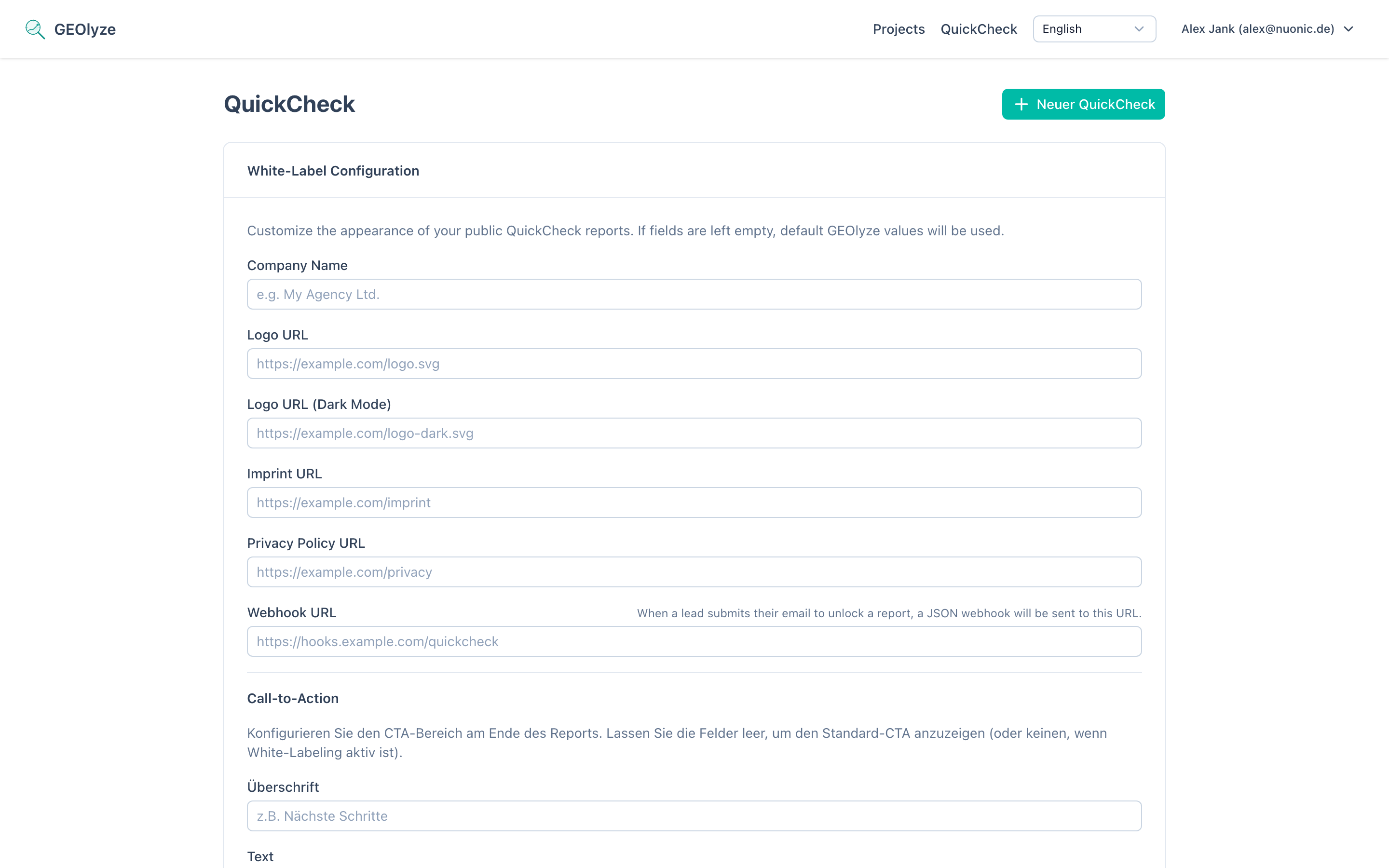
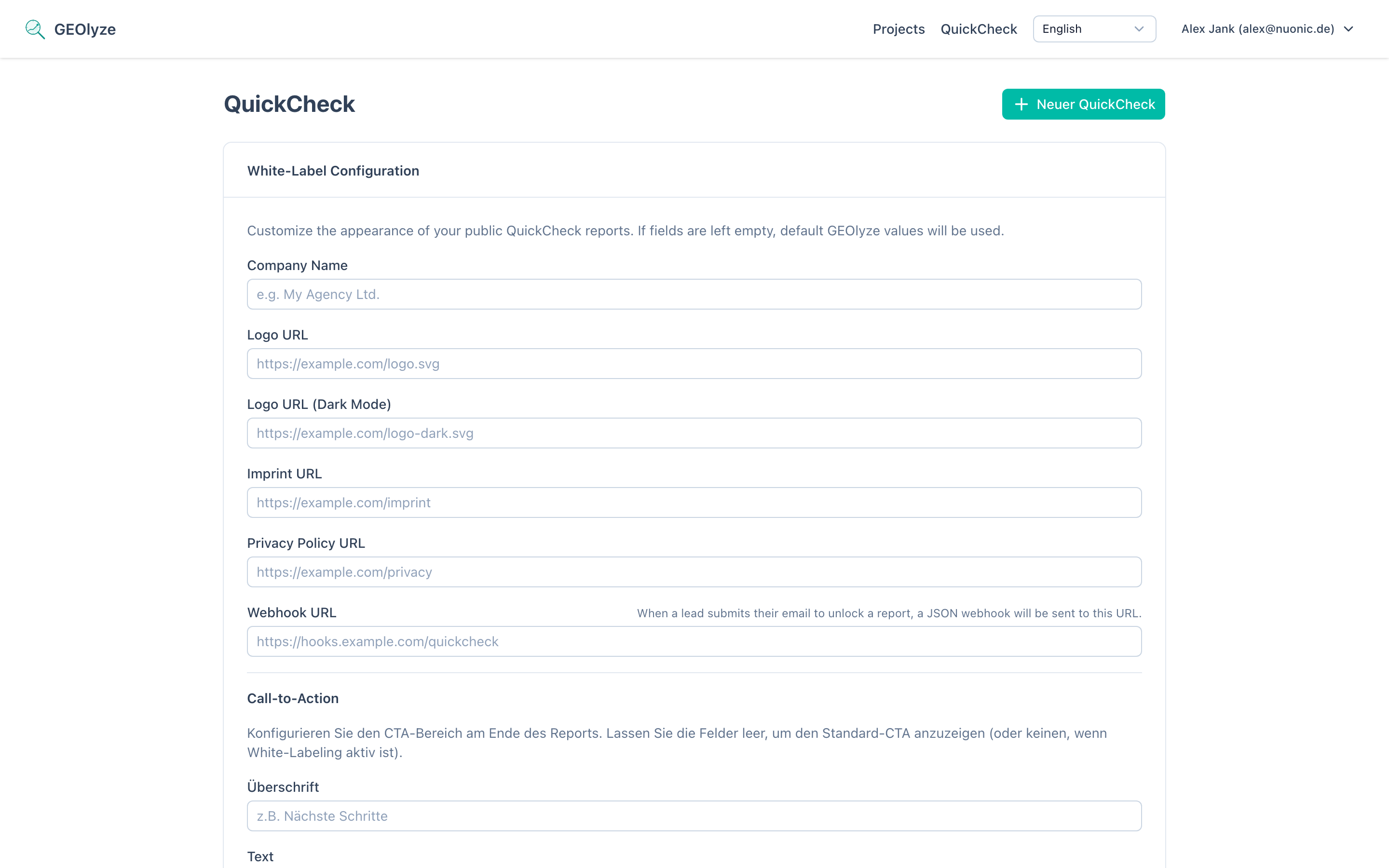
QuickCheck configuration
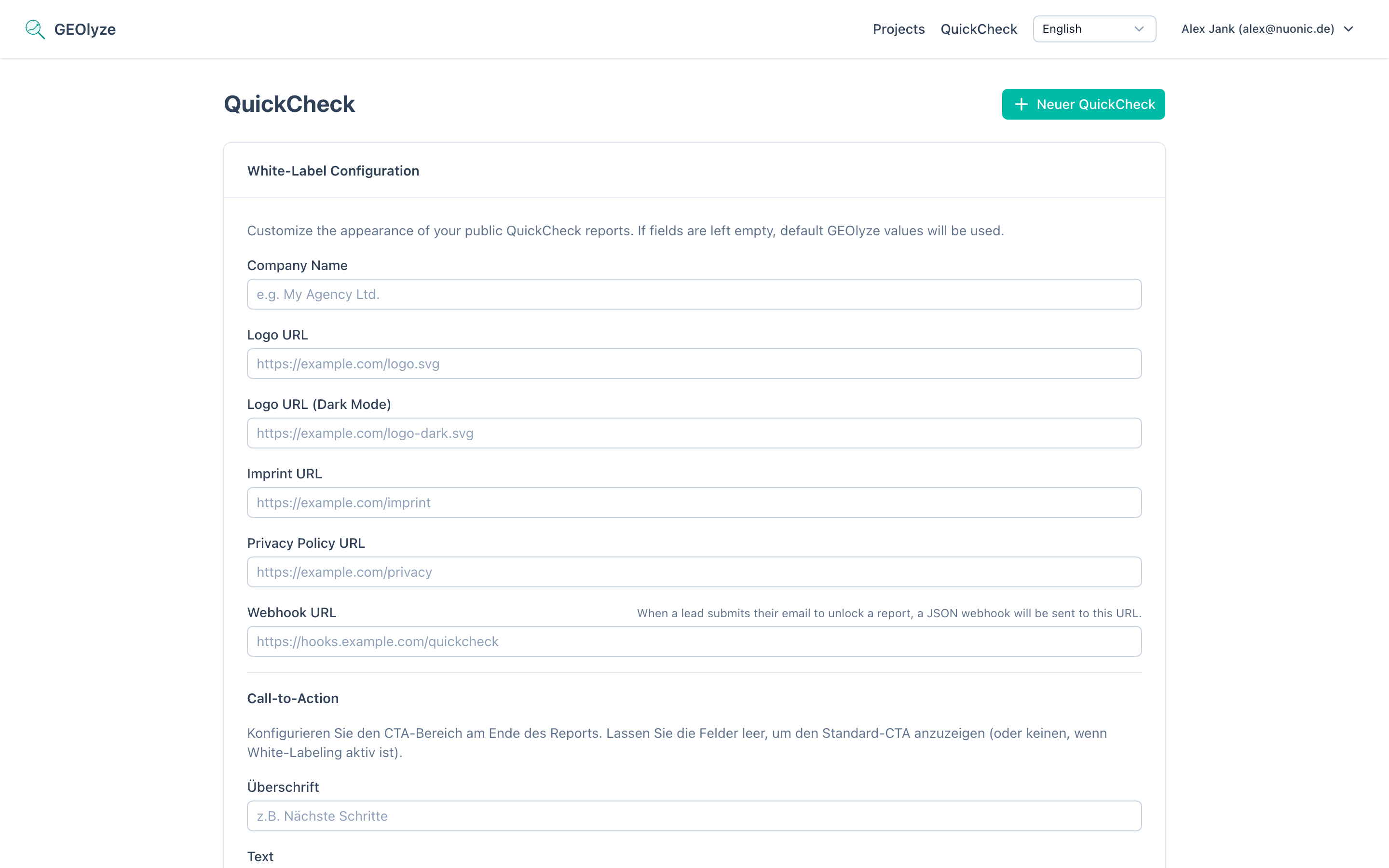
The QuickCheck management page includes a configuration panel that controls branding and call-to-action elements on all your shared reports:
Branding
- Company name — your agency or company name shown on reports.
- Logo URL — logo for light mode.
- Logo URL (dark) — logo for dark mode.
- Imprint URL — link to your imprint page.
- Privacy URL — link to your privacy policy.
Webhook
- Webhook URL — a URL that receives a notification when a QuickCheck completes or a lead is captured.
Call-to-Action
Customize the CTA section at the bottom of each report:
- Heading — the title of the CTA section (e.g., "Next Steps").
- Text — descriptive text explaining what the reader should do next.
- Button 1 — primary action button (text + URL).
- Button 2 — secondary action button (text + URL).
If no custom CTA is configured, a default CTA is shown. If white-labeling is active but no CTA fields are set, no CTA is displayed.
Managing QuickChecks
The QuickCheck list page shows all your QuickChecks in a table with:
- Company name
- Status — pending, running, completed, failed, or cancelled.
- Score — the overall score (0–10) once completed.
- Lead email — the email captured through the gated report.
- Created date
You can click any row to view the report, or delete completed/failed QuickChecks.
Limitations
QuickCheck uses a reduced set of prompts compared to a full project analysis. For comprehensive tracking with trends, diagnosis, scheduled monitoring, and provider-level breakdowns, create a project.